Quick answer
Keep the door open and compare manual thumbturn movement with powered locking. Yale's Assure Lock 2 guide covers YRD410, YRD420, YRD430, and YRD450 models and says a newly installed lock that will not lock may need to be handed again. Calibration failures also call for checking the app procedure and confirming the frame opening is at least 1 inch deep and 1 inch wide. Install four fresh alkaline batteries with correct polarity, check that the visible harness is fully seated and not pinched, and test with the door open before closing it. If the deadbolt moves freely open but binds closed, stop forcing it and use a locksmith for door or strike alignment. If Auto-Lock alone fails, verify that feature is enabled in the Yale Access app and that the battery indicator is healthy.
Safety before you start
Keep a mechanical key or another working entrance available before testing. Work with the door open so you cannot lock yourself out, and keep fingers clear of the moving bolt. Do not force the thumbturn, grind the bolt, defeat the latch, drill the door or frame, short the battery terminals, or disassemble the lock motor. Stop for a hot battery, swelling, leaking cells, burnt odor, damaged wiring, a loose exterior assembly, a door that will not latch securely, or alignment work that requires cutting the frame; use Yale support or a qualified locksmith.
What you need
- Exact lock model number and matching Yale installation guide
- Four fresh alkaline batteries of the size specified by Yale
- Mechanical key for keyed YRD410 or YRD430 models
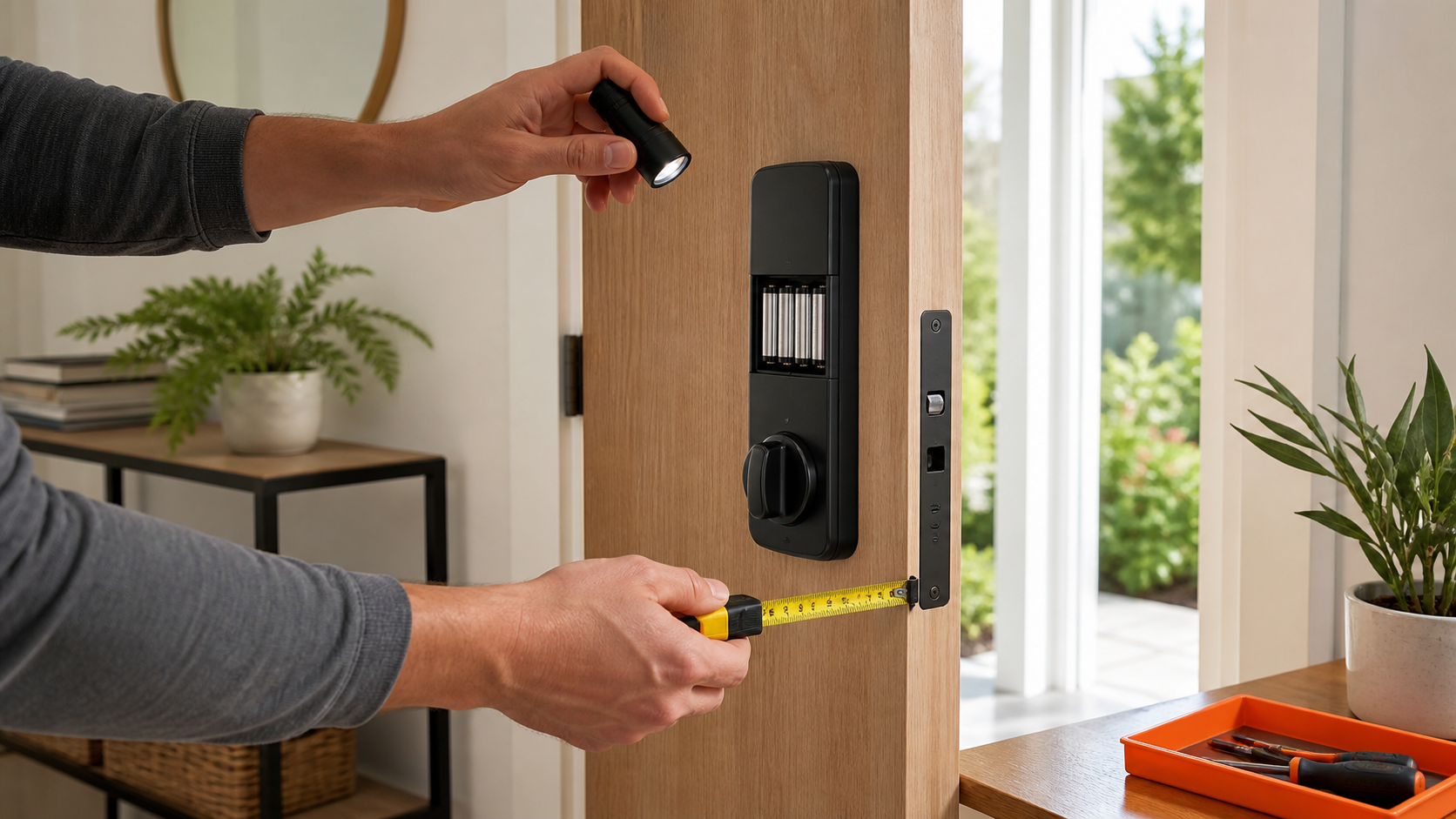
- Tape measure
- Flashlight
- Phone with the Yale Access app and Bluetooth enabled
- Phone camera for the bolt, frame opening, and battery orientation
Step-by-step
Keep the door open and preserve another way inside
Before changing settings, open the door and keep the mechanical key or another entrance available. Record the model from the label or manual and note whether the failure occurs at the keypad, in the app, during Auto-Lock, or every time the motor tries to move the bolt.
Compare manual and powered movement
With the door open, turn the interior thumbturn slowly without forcing it. Then command one lock and unlock cycle while watching from a safe position. Free manual travel but stalled powered travel suggests power, setup, or the lock assembly; movement that becomes difficult only when the door is closed points toward bolt-to-frame alignment.
Replace all batteries as one set
Remove the battery cover only as Yale describes. Install four fresh alkaline batteries with the marked polarity, rather than mixing old and new cells. Yale identifies dim lights, no reaction, and its Low Battery response as reasons to replace the full set. Stop if any cell is hot, swollen, corroded, or leaking.
Inspect the accessible harness
With the cover open and the door still open, look only at the user-accessible harness. Yale directs owners to check that it is fully connected and not pinched. Do not pull on wires, remove the motor housing, or probe a connector. Refit the cover before testing.
Re-hand or recalibrate through the model instructions
For a lock that will not operate after installation, follow Yale's exact handing procedure for the model. If app calibration fails, repeat the in-app sequence with the door open and verify that the frame opening is at least 1 inch deep and 1 inch wide, as Yale specifies. Do not enlarge the opening while the lock is installed or copy a reset sequence from another model.
Separate Auto-Lock settings from a mechanical bind
If keypad and app commands work but automatic relocking does not, check that Auto-Lock is enabled in the Yale Access app and review the battery status. If the motor works with the door open but strains, clicks, or reverses when closed, stop testing; forcing repeated cycles can damage the lock and does not correct a misaligned door.
Escalate without factory-resetting by guesswork
Contact Yale support if the keypad and app are out of sync, a correct fresh battery set does not restore response, or calibration continues to fail with free bolt movement. Use a locksmith if the door has shifted, the strike opening is undersized or off-center, or the lock cannot secure the door. A factory reset erases setup and should be used only under Yale's model-specific directions.
The open-door test separates setup from alignment
A smart deadbolt has to move through the same physical opening as a conventional bolt. App connectivity cannot compensate for a bolt rubbing the strike. Testing once with the door open and once with it closed reveals that difference without dismantling the lock.
A door can shift with humidity, hinge wear, or weather changes. If closing pressure or lifting the handle changes the symptom, document it for a locksmith instead of repeatedly driving the motor against resistance.
Keyed and key-free models have different lockout recovery
- YRD410 and YRD430 are keyed models; keep the matching mechanical key available.
- YRD420 and YRD450 are key-free models; Yale documents external 9-volt terminals for temporary backup power when locked out.
- Backup power is for access, not a substitute for replacing the internal batteries.
- Use the exact model instructions before any handing, calibration, or reset procedure.
Know when the secure repair is professional
A lock that cannot reliably extend and retract is a security problem even if the app reports success. Do not leave the property relying on an uncertain Auto-Lock cycle. Secure the door by another reliable method and arrange support.
Internal motor faults, damaged harnesses, a loose exterior escutcheon, or door-frame modification are outside this guide. Give support the exact YRD model, app symptom, battery result, and open-versus-closed test result.
Common questions
Why does my Yale Assure Lock 2 lock with the door open but not closed?
That pattern strongly suggests the bolt is rubbing or missing the frame opening. Stop forcing powered cycles and have the door and strike alignment checked if ordinary closing does not produce free bolt travel.
Which Yale Assure Lock 2 models use a 9-volt battery for emergency access?
Yale's troubleshooting guide identifies the key-free YRD420 and YRD450 models as having external 9-volt backup terminals. Keyed YRD410 and YRD430 models use their mechanical key for lockout access.
Should I factory-reset a Yale smart lock that will not calibrate?
Not as a first step. Confirm batteries, free bolt travel, handing, the frame opening, and the in-app calibration procedure first. Reset only with Yale's instructions because it removes the existing setup.
Prefer to hire a professional?
Find a local electrical company
Browse business profiles with published services, coverage, and direct contact information in the FixMate directory.
Sources and further reading
This article is original FixMate editorial content informed by the references below. Always follow manufacturer instructions and local code.